
Using the content calendar
Use the real month and week calendar, drag posts, open composer presets, and manage scheduled content.
What the calendar shows
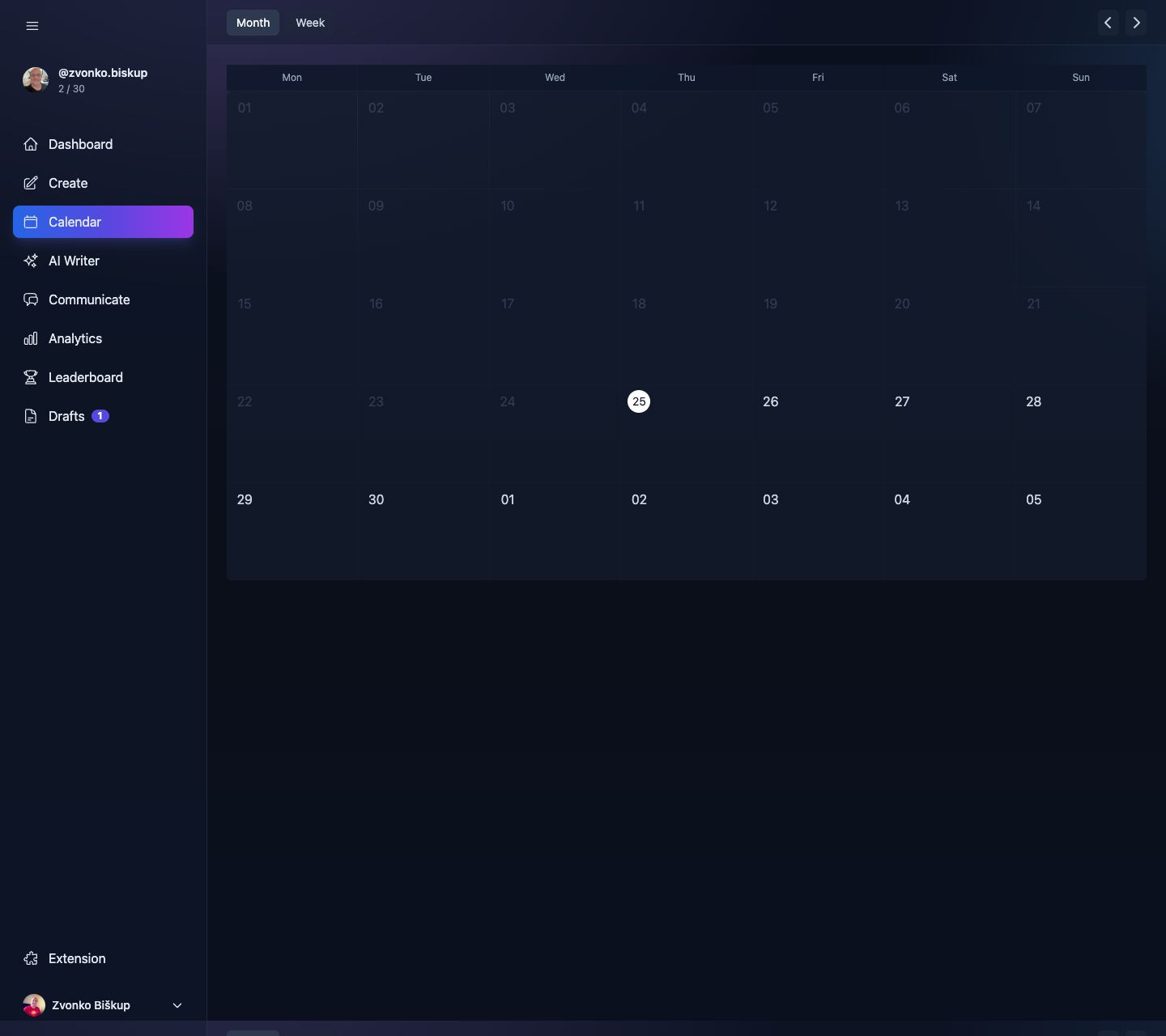
The Calendar page supports both month and week views. It loads posts from the current selected Threads profile and shows scheduled, publishing, and posted items in their date context.
Navigating weeks
The page header has a month/week toggle and previous / next buttons. The view state is coordinated through browser events, not hard page reloads.
Creating a post from the calendar
In month view, clicking a future day opens the composer with that date preset. In week view, the schedule flow can also open with an exact date and time preset when editing an existing scheduled post.
Rescheduling a post
Scheduled items can be dragged onto another day. The calendar updates the schedule by patching the post rather than forcing you back through the full editor.
Reading a post card
Cards show the thread preview and status. Clicking a card opens the post editor drawer, where you can edit content, CTA settings, Momentum Drop, Content Loop, or scheduling.
Spotting gaps
Month view is best for spotting empty days. Week view is better for exact timing and moving a schedule around.
The same CTA, Momentum Drop, and Content Loop options from Create also appear inside calendar editing, so you do not have to leave Calendar to manage those settings.