How to connect your Threads account
Step-by-step guide to connecting your Threads profile to MomentumHive via OAuth so you can start scheduling and publishing posts.
Before you start
MomentumHive connects to Threads with Meta OAuth. The app sends you to threads.net/oauth/authorize, exchanges the returned code for a short-lived token, upgrades it to a long-lived token, then fetches your Threads profile details.
The app requests these scopes: threads_basic, threads_content_publish, threads_manage_insights, threads_manage_replies, and threads_read_replies.
How to connect
- While signed in, open Connect Threads.
- Click Connect Threads. The link opens in a new browser tab.
- Complete the Threads / Meta authorization flow.
- MomentumHive creates or updates the connected profile, stores the long-lived token, and marks the profile active.
- If this is your first Threads profile in the app, it becomes the primary profile automatically.
What happens next
Three default time slots are created for new profiles: 08:30, 12:15, and 18:30. The app also starts syncing your recent external Threads posts in the background. The dashboard shows a sync banner while history import is still pending.
Multiple accounts
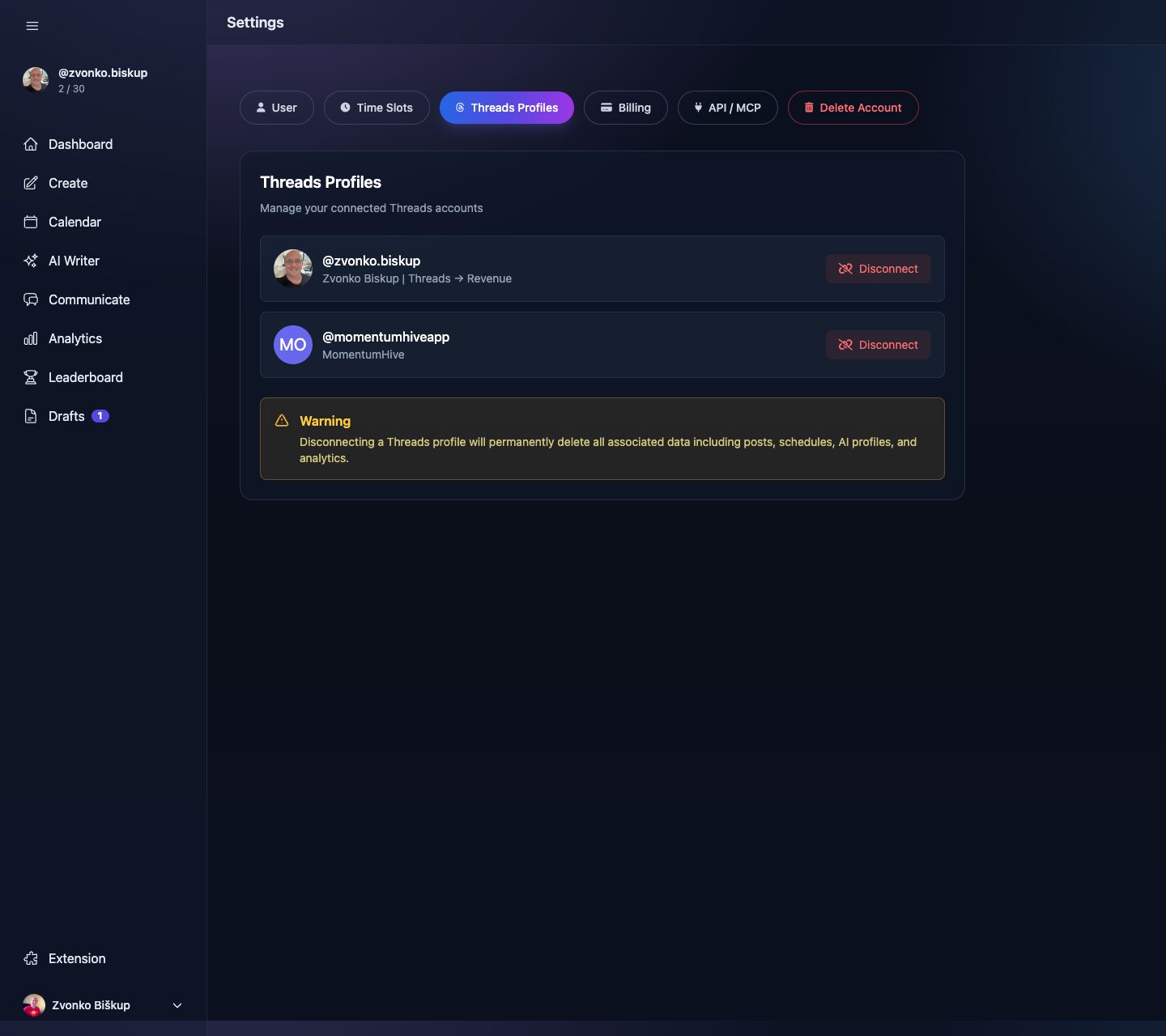
Multiple connected profiles are supported, but the exact limit depends on your plan. The profile switcher in the sidebar controls which profile the app is currently operating on.
Mobile and in-app browser warning
The real connect screen warns that mobile, and especially in-app browsers, can break the handoff. If you are inside an app browser, MomentumHive tells you to reopen the flow in Safari or Chrome. There is also a button that emails you a desktop link.
A Threads profile can only belong to one MomentumHive user. If you try to connect a Threads account that is already attached to another MomentumHive account, the flow is rejected.