
Creating and publishing your first post
How the real composer works: drafts, multi-part threads, media uploads, topic tags, CTAs, and publish now.
Opening the composer
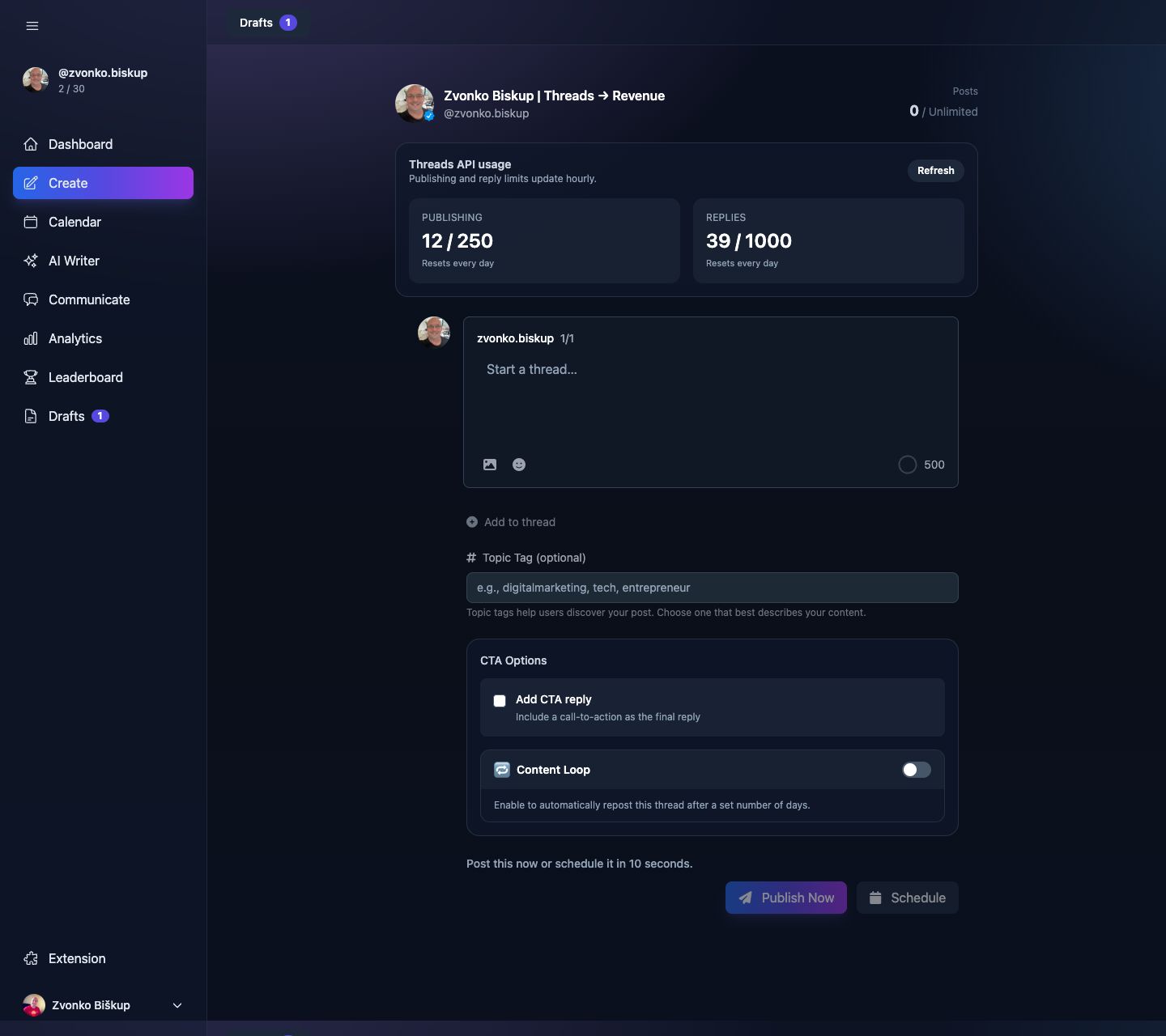
Open Create from the sidebar. The composer autosaves into a draft as soon as you start typing meaningful content.
Writing your post
Each part of the thread has its own textarea and 500-character counter. The composer stores content as parts, not one big body, so even a single post is treated as a one-part thread internally.
Adding media
Use the media button on a part to upload jpg, jpeg, png, gif, mp4, or mov. Uploads are validated server-side up to 100 MB per file. A single part can hold up to 20 media items, which the publishing layer treats as a carousel when there is more than one item.
Publish immediately
Use Publish now to queue the draft for immediate publishing. The post status moves to publishing first, then a background job sends it to Threads.
Drafts
Drafts are managed from the Drafts modal in the Create header. You can search, reopen, and delete drafts there. Only drafts can be deleted from the API.
Schedule for later
Open the schedule modal, choose a date and time in your configured timezone, and save. The post status becomes scheduled. See How to schedule posts.
The composer also supports optional topic tags, CTA replies, Momentum Drop, and Content Loop settings. Those options live below the thread body.
Multi-part threads
Use Add to thread to create more parts. The button stays disabled until the last visible part has content.